

.jpg)
.jpg)
Description
Download 360 Browser – Fast, Secure & Customizable Web Browsing Tool
Overview
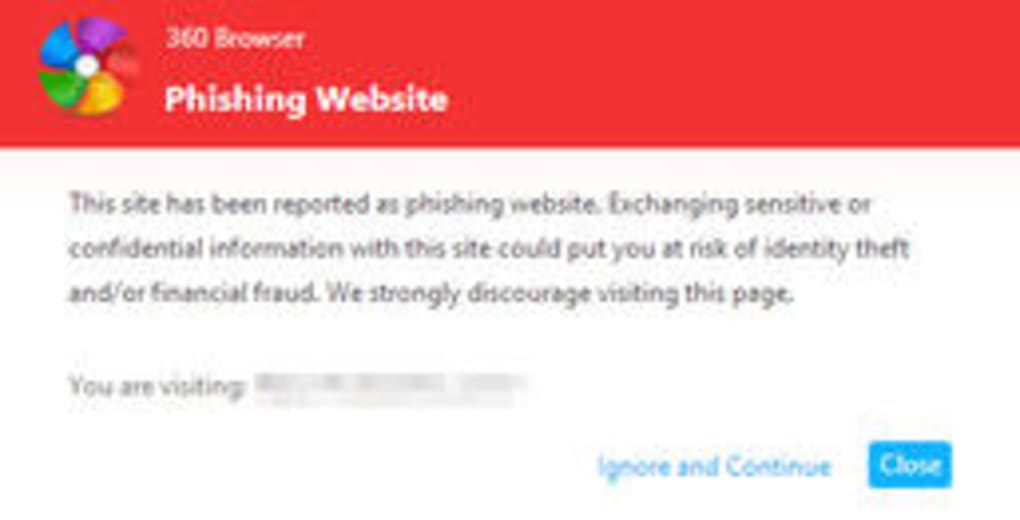
360 Browser is the latest offering from 360 Internet Security, designed to combine the speed of a modern WebKit engine with the reliability of an Internet Explorer compatibility mode. Built for Windows users who demand both performance and protection, this browser delivers a sleek, Chrome‑like interface while packing advanced security layers such as anti‑phishing filters, malicious URL detection, and built‑in malware scanning for downloaded files. The browser also includes an intelligent ad‑filter that removes intrusive ads without compromising page layout. Whether you are a casual surfer, a power user who needs legacy site support, or a security‑conscious professional, 360 Browser provides a balanced mix of speed, safety, and personalization. Its theme library lets you change the look in a few clicks, while the intuitive drop‑down menu grants instant access to history, settings, and extensions. In short, 360 Browser aims to be the “all‑in‑one” solution for users who want a fast, secure, and smart browsing experience without the bloat of unnecessary features.
Key Features That Set 360 Browser Apart
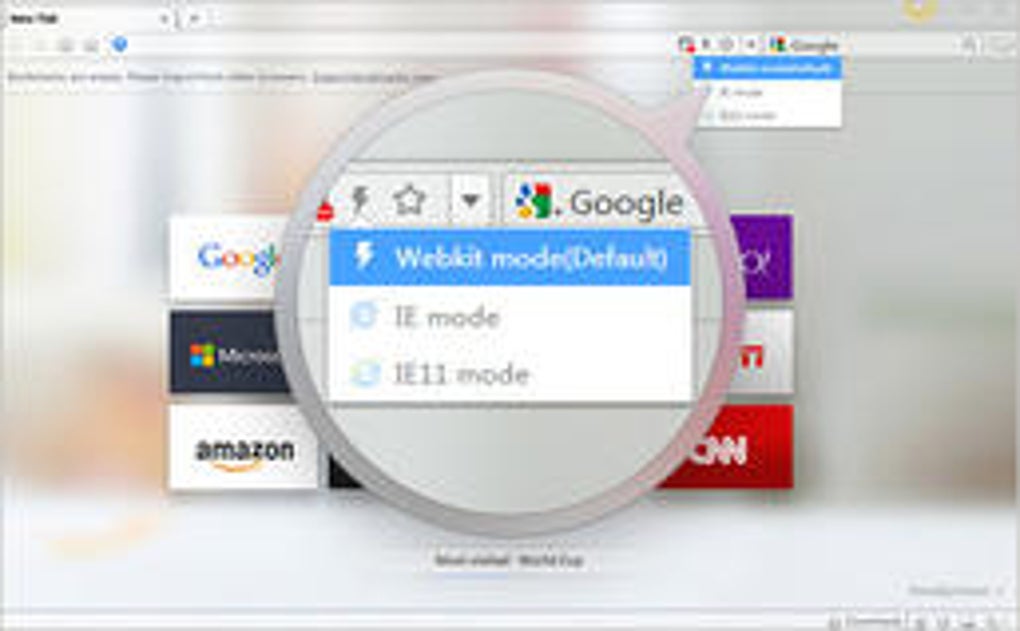
- Dual Rendering Engines: Switch effortlessly between the high‑performance WebKit engine and an Internet Explorer compatibility mode for legacy websites.
- Lightning‑Fast Page Loading: Optimized rendering pipeline and smart caching deliver pages up to 30% faster than many mainstream browsers.
- Robust Security Suite: Integrated anti‑phishing, malicious URL filtering, and real‑time malware scanning protect you from online threats.
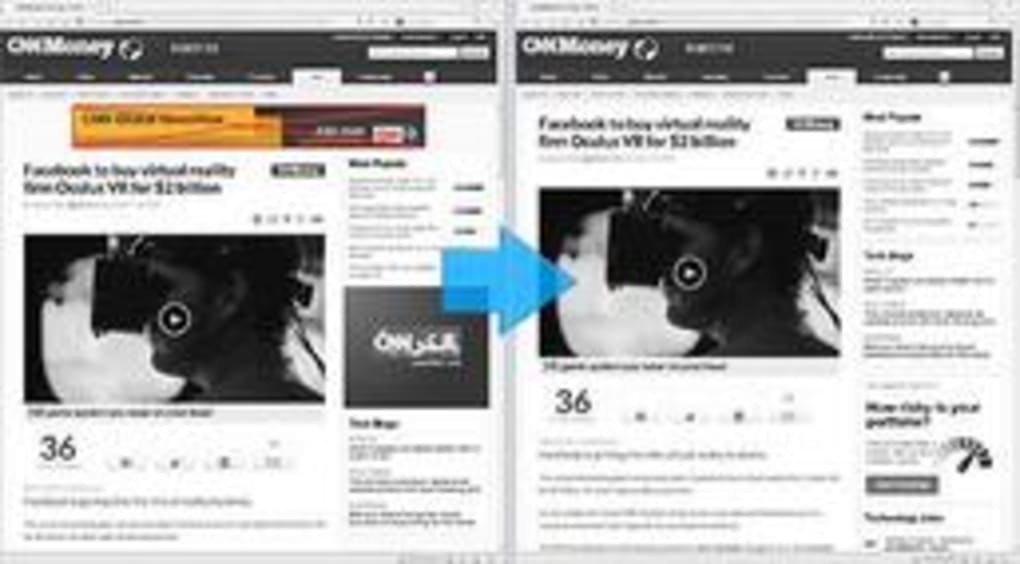
- Built‑In Ad‑Filter: Automatically blocks intrusive ads, pop‑ups, and trackers while preserving the visual integrity of webpages.
- Customizable Themes & Layouts: Choose from a growing collection of themes or create your own to match your personal style.
- Easy Navigation Dashboard: Home screen displays your most visited sites as large icons for one‑click access.
- Extension Support: Compatible with a wide range of Chrome extensions, expanding functionality as needed.
- Privacy‑First Settings: Options to control cookies, site permissions, and data sharing give you full control over your digital footprint.
Installation, First‑Run Setup, and Everyday Usage
Getting started with 360 Browser is straightforward. Visit the official 360 Browser download page, click the Download for Windows button, and run the installer. The installer is digitally signed, ensuring a secure download free from tampering. During installation, you can choose a custom folder, create a desktop shortcut, and decide whether the browser should become the default for opening web links.
Once installed, the first launch presents a clean welcome screen that guides you through essential settings: selecting your preferred rendering engine, enabling the ad‑filter, and importing bookmarks from other browsers. The setup wizard also prompts you to enable automatic updates, which is highly recommended to keep security definitions current.
Day‑to‑day usage mirrors the familiarity of Chrome. The address bar doubles as a search box, and the top‑right drop‑down menu provides quick links to History, Downloads, Extensions, and Settings. To switch rendering engines, click the small engine icon next to the address bar and select either WebKit or IE mode. The built‑in task manager (accessible via Shift+Esc) lets you monitor active tabs and extensions, making it easy to close resource‑heavy pages.
For power users, keyboard shortcuts such as Ctrl+T for a new tab, Ctrl+W to close a tab, and Ctrl+Shift+B to toggle the bookmark bar are fully supported. The browser also offers a “Reading Mode” that strips away clutter for a distraction‑free experience, and a “Privacy Mode” that opens a temporary session without storing cookies or history.
Compatibility and System Requirements
360 Browser is officially supported on Windows 7, Windows 8, Windows 8.1, and Windows 10/11 (both 32‑bit and 64‑bit). The installer detects the appropriate architecture automatically, ensuring optimal performance on your system. While the primary focus is Windows, the underlying WebKit engine is cross‑platform, and a beta version for macOS is currently in testing. Mobile versions for Android and iOS are also in development, promising the same security features and dual‑engine capability on smartphones and tablets.
Minimum hardware specifications include a 1 GHz processor, 1 GB RAM, and at least 200 MB of free disk space for installation. For the best experience—especially when using the IE compatibility mode—Microsoft Visual C++ Redistributable packages should be up to date. The browser’s lightweight design means it runs comfortably on older machines while still delivering high performance on modern hardware.
Because 360 Browser integrates with Windows Defender and other security suites, you may receive a prompt to allow network access during the first run. Granting this permission enables the real‑time URL filtering and malware scanning features. The browser also respects system proxy settings, making it suitable for corporate environments that require proxy authentication.
Pros & Cons
Pros
- Dual rendering engines give excellent compatibility with both modern and legacy sites.
- Integrated security suite blocks phishing, malicious URLs, and scans downloads automatically.
- Built‑in ad‑filter reduces clutter without needing third‑party extensions.
- Fast page loading thanks to optimized WebKit engine.
- Highly customizable with themes, extensions, and flexible UI settings.
Cons
- IE compatibility mode can be slower than native WebKit rendering.
- Limited official support for macOS and mobile platforms (beta only).
- Some users report occasional UI glitches when switching themes frequently.
- Advanced settings are hidden behind multiple menus, which may confuse beginners.
Frequently Asked Questions
Is 360 Browser completely free to use?
Yes, 360 Browser is offered as a free download with no hidden subscription fees. Optional premium extensions may be available from third‑party developers.
How does the built‑in ad‑filter differ from third‑party ad blockers?
The native ad‑filter is tightly integrated with the rendering engine, allowing it to block ads before they are loaded, which reduces bandwidth usage. It also respects site whitelists automatically, whereas third‑party blockers rely on external filter lists that need regular updates.
Can I import bookmarks from Chrome, Firefox, or Edge?
During the initial setup wizard, 360 Browser scans for existing browsers and offers to import bookmarks, passwords, and history with a single click.
Is the browser safe for corporate environments?
Yes. The application can be centrally managed via Group Policy, supports proxy authentication, and its security modules are regularly updated to meet enterprise standards.
How often does 360 Browser receive updates?
Automatic updates are pushed weekly for security definitions and bi‑weekly for feature enhancements. Users can also manually check for updates in the Settings menu.
Conclusion & Call to Action
360 Browser delivers on its promise of a fast, secure, and customizable browsing experience. Its dual‑engine architecture ensures that both modern web apps and older corporate portals render correctly, while the integrated security suite provides peace of mind against phishing and malware. The ad‑filter and theme options add a layer of convenience and personalization that many free browsers overlook. Although the macOS and mobile versions are still in beta, Windows users gain a solid alternative to the mainstream browsers dominating the market.
If you’re looking for a secure, high‑performance browser that doesn’t compromise on style, give 360 Browser a try. Download it today, enable automatic updates, and enjoy a smoother, safer web experience.
Guides & Tutorials for 360 Browser
How to install 360 Browser
- Click the Preview / Download button above.
- Once redirected, accept the terms and click Install.
- Wait for the 360 Browser download to finish on your device.
How to use 360 Browser
This software is primarily used for its core features described above. Open the app after installation to explore its capabilities.
User Reviews for 360 Browser 0
No reviews found





